A monitor connects
Windows can send sound to the monitor instead of the headphones you were using.
Stop Windows from switching to the wrong device. Put your headphones, speakers, and microphone in the order you want. SoundLatch handles the switching so you can set and forget!
Plug in a headset. Wake a monitor. Reconnect a dock. Windows can switch your audio without warning, right when you are joining a call, settling in to listen, or presenting.
A call goes quiet, music comes from the wrong speakers, or your microphone changes. You stop what you are doing to check settings and choose the right device again.
Windows can send sound to the monitor instead of the headphones you were using.
Audio can move to speakers you did not intend to use, interrupting your call or listening.
A newly available microphone can become the default, leaving your next call on the wrong input.
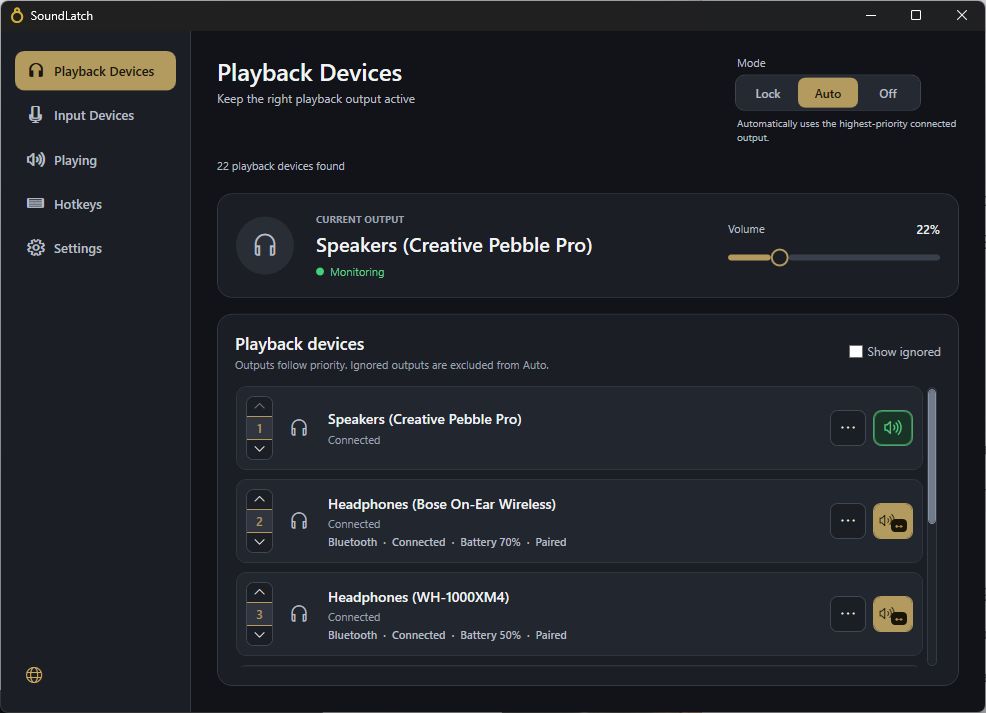
Set priorities for playback and input, use Lock when you want a particular device, and let Auto handle everyday switching.
Rank your speakers, headphones, and microphones. Playback and input each have their own priority list.
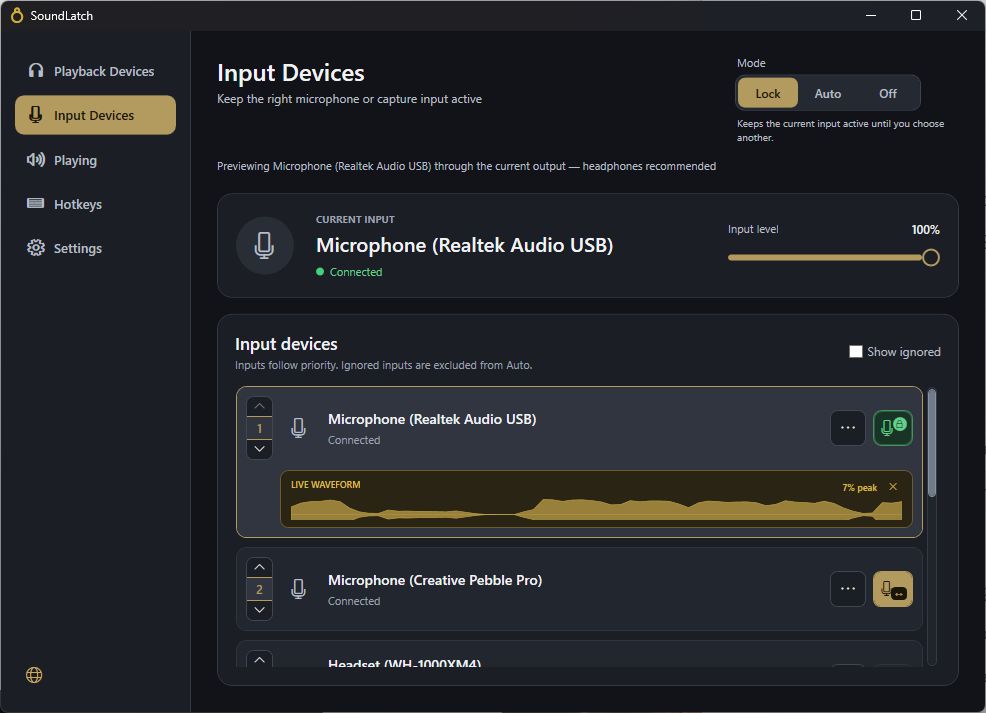
Need a specific output or input? Use Lock to keep it selected while that device is available.
Choose Auto and SoundLatch follows your priorities as devices connect and disconnect.
Set your preferred playback and input devices once, then let SoundLatch manage changes as they connect and disconnect. When you want to step in, microphone testing, hotkeys, and taskbar controls are close at hand.
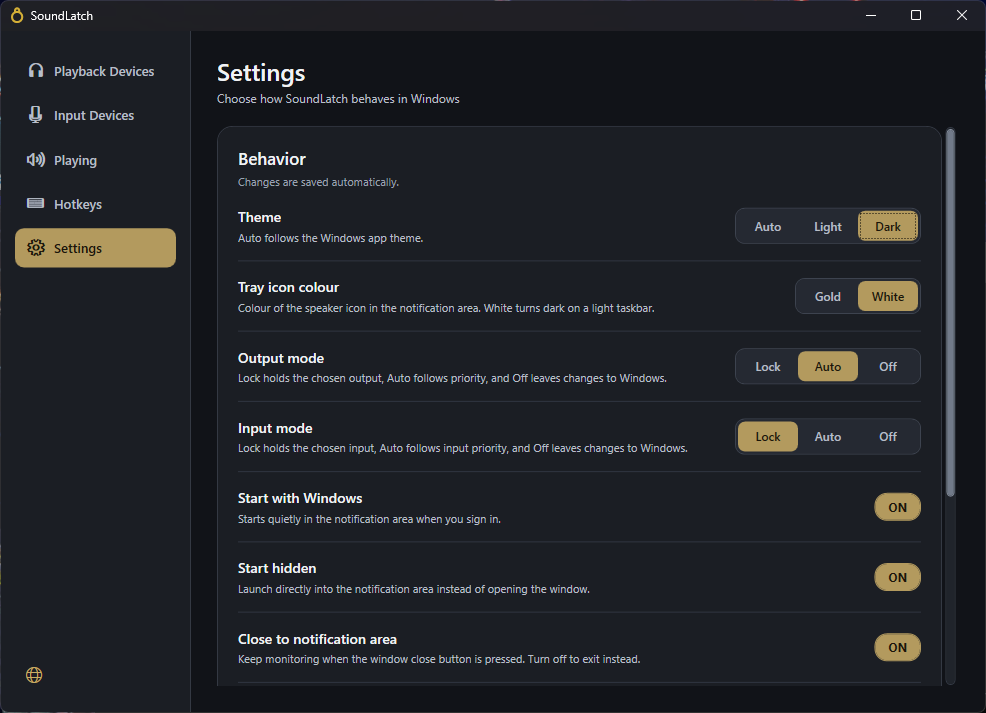
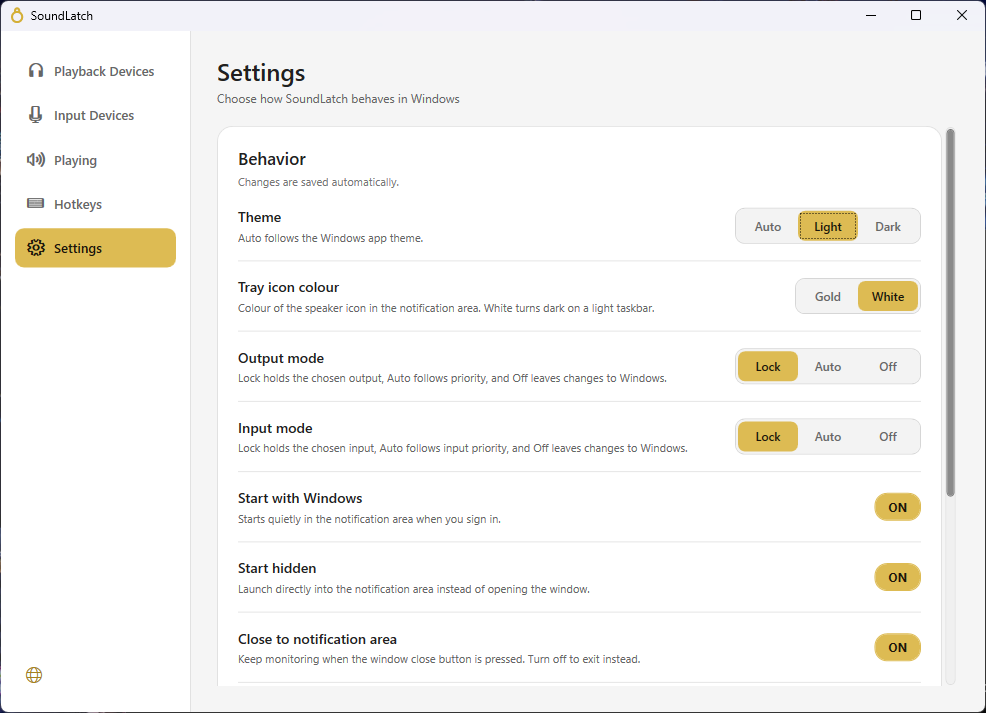
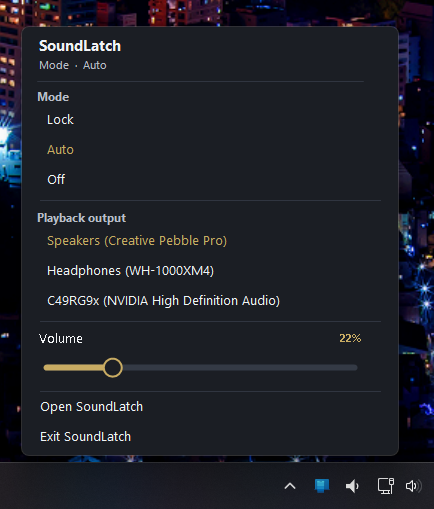
Open the tray popup to switch playback devices, choose a mode, or adjust volume. Your everyday controls are one click away.
SoundLatch manages your Windows playback and input devices. Give each its own priority list, then choose how SoundLatch handles switching.
Yes. Microphones have their own priority list and mode. You can also test an input with a live waveform and peak level.
Auto follows your priority list as devices become available. Lock holds a device you choose while it is available. Off leaves device changes to Windows. Playback and input can use different modes.
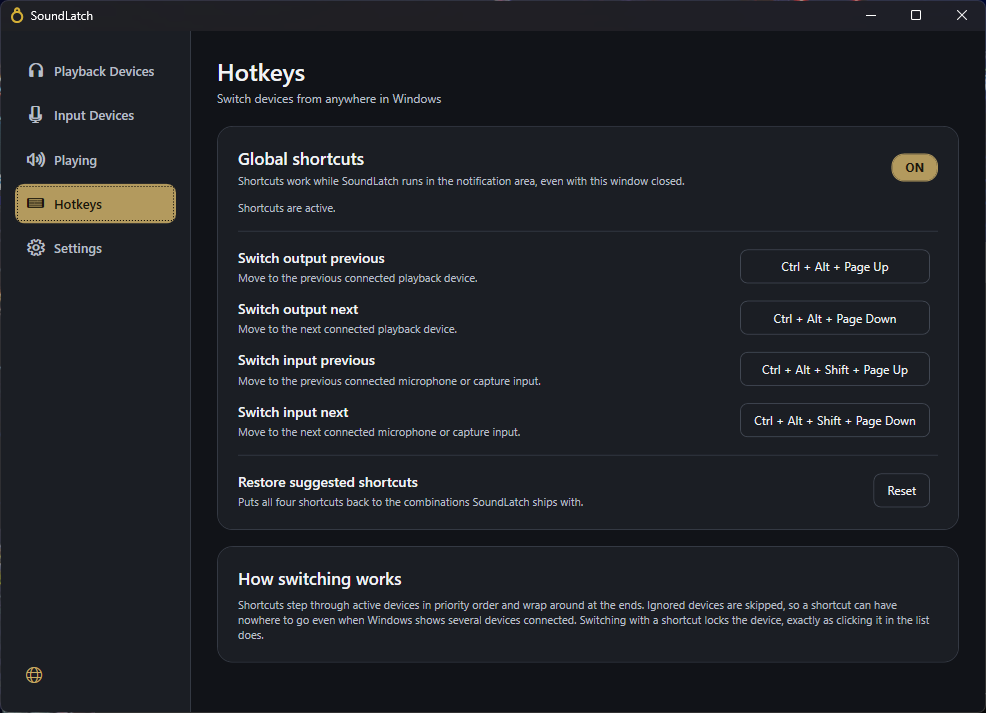
Yes. Use the taskbar popup or customize global hotkeys to move between available outputs and inputs. Switching with a hotkey locks the selected device.
Yes, when “Close to notification area” is on, SoundLatch keeps monitoring after you close its window. You can also start it with Windows and launch it hidden.
Yes. Device switch notifications can be turned on or off in Settings.
Choose Light or Dark, or use Auto to follow your Windows app theme. You can also choose the tray icon colour and select a language.
SoundLatch is available exclusively from the Microsoft Store. The Store shows the current price and availability for your region.
Keep your preferred audio devices where they belong.
Get SoundLatchAvailable exclusively on the Microsoft Store